Stage 6 — Code
⏱️ At a Glance Once a build completes, this is your code workspace — browse files, sync to GitHub, and edit directly in the inline editor.
Purpose: Integrate the compiled application into a Git repository and provide a local workspace code editor for developers to review, refine, and manage the generated codebase.
📍 Pipeline position: Stage 6 of 9 — see the full pipeline map.
Steps
- Access the Local Files tab to browse backend and frontend directory structures.
- Use the GitHub Repo tab to synchronize code with your connected repository.
- Use the built-in file search to locate specific files quickly.
- Open any file in the inline editor to view its contents.
- Perform file operations as needed:
- Modify existing files
- Create new files
- Delete files that are no longer needed
🔗 Ensure your GitHub repository is connected before attempting to sync. Repository settings can be configured in your account preferences.
Worked Example — Contractor Sync Git Sync
For Contractor Sync, the team connected a GitHub repository under their organization (org/contractor-sync) during this stage. Backend (FastAPI) and frontend (Flutter) directories were synced as separate top-level folders, and the team used the inline editor to manually tune the PostGIS geofence radius default before pushing the change upstream via the GitHub Repo tab.
What's Next
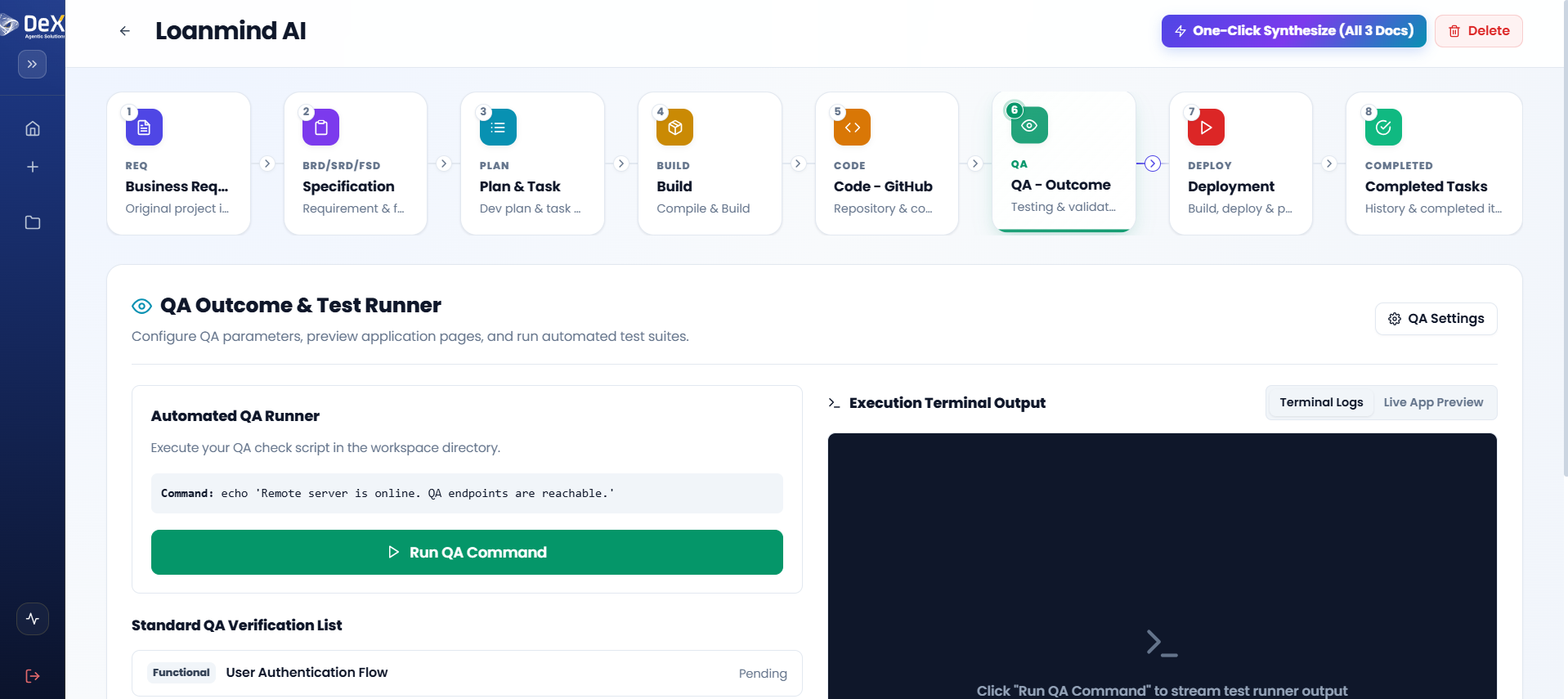
➡️ Stage 7 — QA — Run automated tests against the compiled application before deployment.