Projects
⏱️ At a Glance A Project is how you turn an idea into a working application in DeX. Fill in a 5-step brief (name → problem → solution → tech stack → review), click Generate, and DeX's AI writes your BRD, SRD, and FSD for you — no one hand-writes a requirements doc from scratch.
The Projects section in DeX is where ideas become structured, AI-generated delivery packages. Every project you create passes through a guided five-step brief that feeds DeX's AI engine — producing requirement documents, architecture specs, sprint plans, and tasks automatically, without anyone hand-writing a BRD from scratch.
💡 A well-filled project brief is the foundation for high-quality AI-generated documentation. The time you invest in Steps 1–4 directly determines the quality of everything DeX generates downstream — from the BRD all the way to the deployed application.
Why This Matters
Most teams lose days translating a rough idea — "we need an app for X" — into something a developer can actually build from. DeX collapses that translation work into a structured intake flow. You describe the problem and the shape of the solution in plain language; DeX's AI Document Compilation Engine turns that into:
- A Business Requirement Document (BRD)
- A Software Requirement Document (SRD)
- A Functional Specification Document (FSD)
- A Development Plan and Task Breakdown
- A buildable, deployable application
This page covers how a project gets created. Each subsequent page in this section covers one stage of that journey in depth, using a single running example — Contractor Sync — so you can see how a real, vague problem becomes a finished application.
Before You Start: Prerequisites
Before creating a project, make sure you have:
| Prerequisite | Why It Matters |
|---|---|
| A signed-in DeX account | See Sign-In & Login. |
| A clear one-paragraph problem statement | Even a rough draft speeds up Step 2 significantly. |
| Knowledge of your target users | Who experiences the problem? Who will use the solution? |
| A general sense of your tech preferences (optional) | You can let DeX recommend a stack, or specify one if your org has constraints. |
| Project Category in mind | E.g., Developer Tools & SaaS, FinTech, Workforce Management. This shapes AI architecture suggestions. |
⚠️ You don't need final answers for everything above — DeX's brief is designed to be filled in conversationally. But arriving with at least a rough problem statement will save you a full revision cycle later.
For the full prerequisite checklist and walkthrough of the creation screen itself, see Create Project.
How to Create a Project
You can start a new project from two places:
- Click "Create Project" from the Dashboard top bar, or
- Click "+ Projects" from the left menu panel
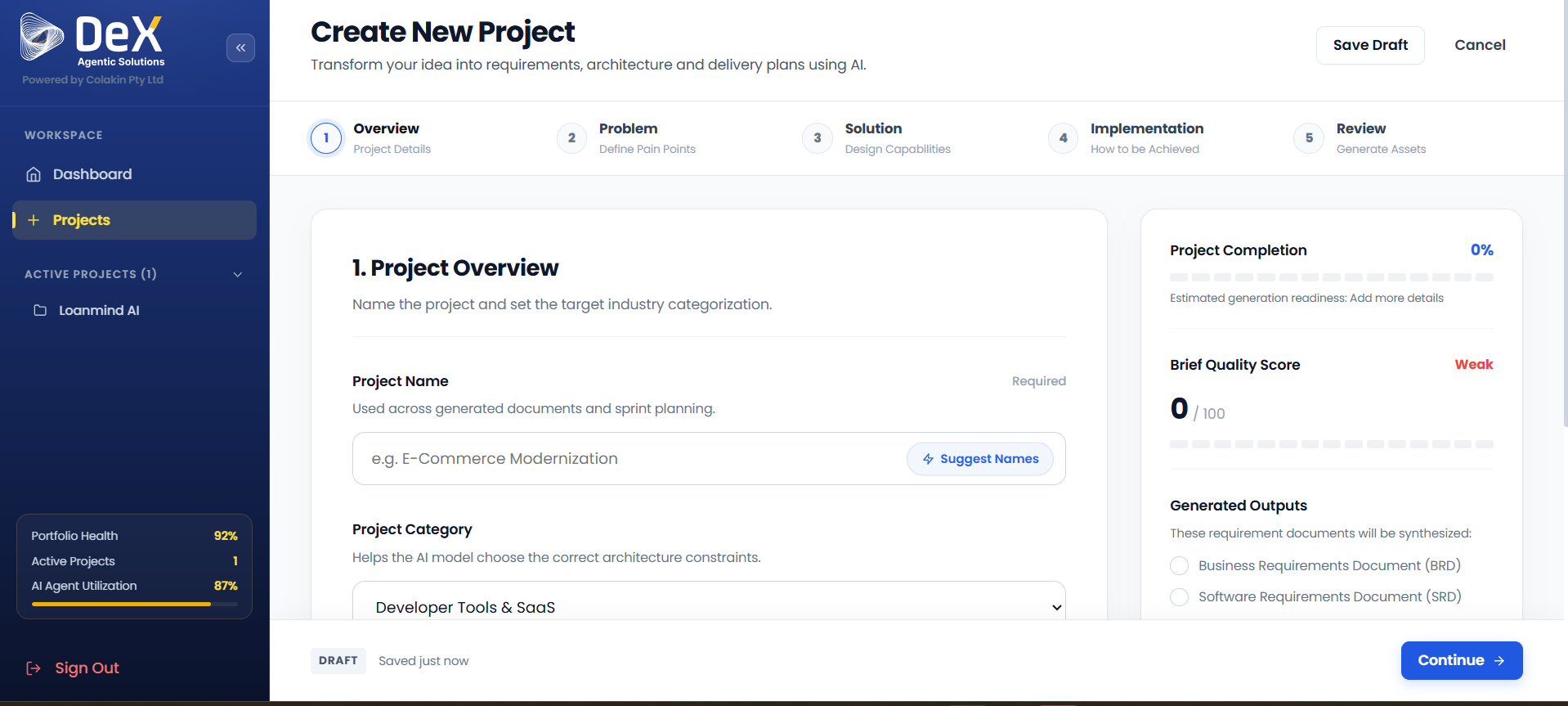
Both routes take you to the Create New Project workspace — a guided five-step flow that transforms your idea into structured requirements and delivery plans using AI.
The Five Steps
| Step | Name | Purpose | Documentation |
|---|---|---|---|
| 1 | Overview | Name and categorize the project | Create Project |
| 2 | Problem | Define the business pain points | Problem Definition |
| 3 | Solution | Describe what you're building | Solution Design |
| 4 | Implementation | Specify your technical stack | Solution Design |
| 5 | Review | Confirm all inputs before AI generation | Review & Generate |
📊 The right-side panel throughout this flow shows real-time progress indicators — completion percentage, brief quality score, and a preview of outputs that will be generated (BRD, SRD, FSD).
Running Example: Contractor Sync
Throughout this section, we'll follow one real project end-to-end: Contractor Sync.
The problem: A facilities services company managed cleaner attendance manually — supervisors tracked who clocked in and out of client sites using phone calls and spreadsheets. This created constant data-entry overhead, disputes over hours worked, and no reliable way to confirm a cleaner was physically present at the correct site.
The solution built on DeX: Contractor Sync — a mobile sign-in/sign-out application for cleaners, with geofencing (so a clock-in is only accepted within a defined radius of the job site) and facial verification (so the system confirms the person clocking in is the assigned cleaner, not a colleague signing in on their behalf).
We'll revisit Contractor Sync at every stage — Problem, Solution, Review, BRD, FSD, Code, QA, and Deployment — so you can see exactly what real inputs and real AI outputs look like at each step.
What Happens After You Click "Generate Documentation"?
Once your five-step brief is complete and you click Generate Documentation, DeX launches the AI Document Compilation Engine. The system processes all your inputs and begins synthesizing:
- ✅ Business Requirement Document (BRD)
- ✅ Software Requirement Document (SRD)
- ✅ Functional Specification Document (FSD)
You'll see a "Synthesizing Project" status while the AI works. Depending on project complexity, this typically takes a few moments.
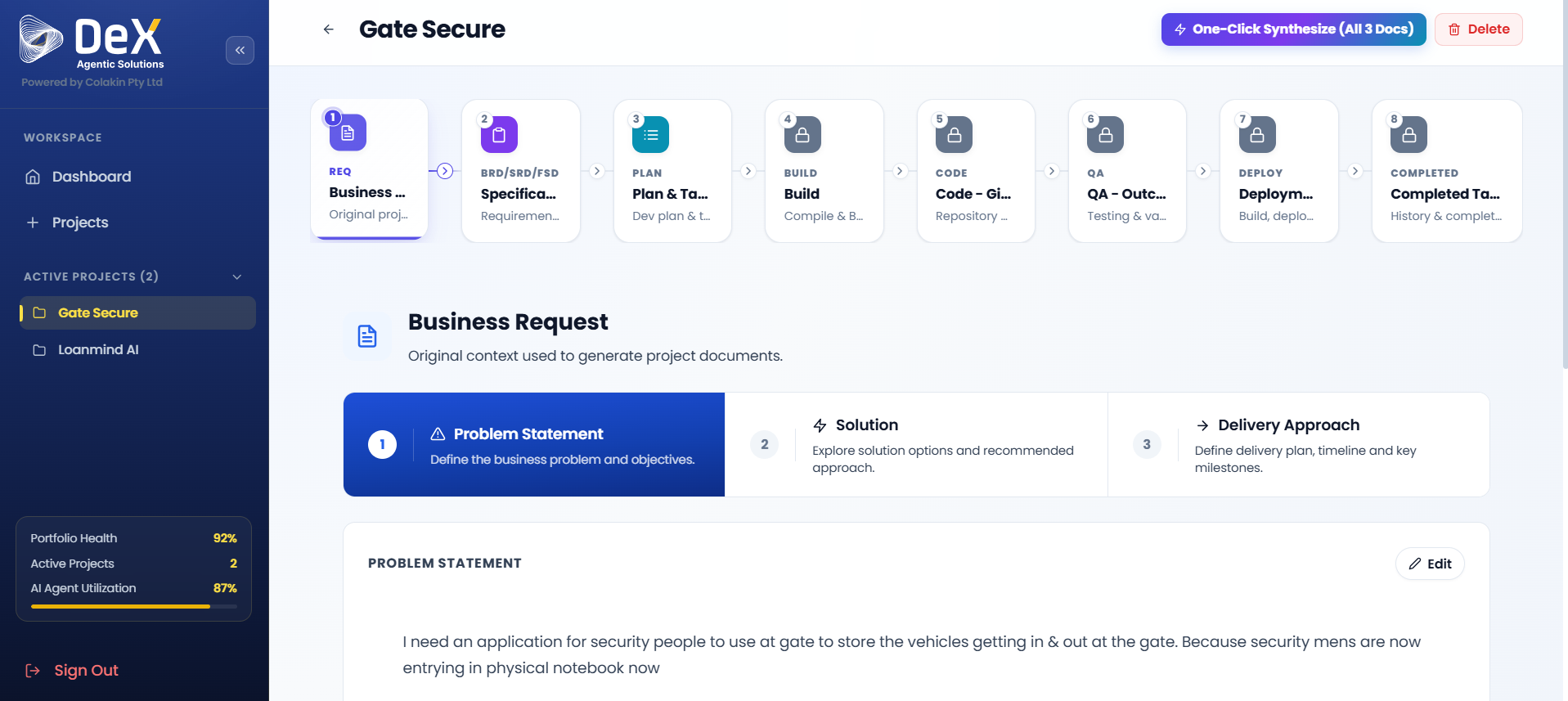
Once complete, you're automatically moved to Stage 2 — Specification inside Active Projects, where you can preview, edit, download, or regenerate each document.
Where to Go Next
- New to DeX? Start with Sign-In & Login.
- Ready to start your brief? Go to Create Project.
- Already created a project and want to see what happens after? Go to Active Projects.