Stage 8 — Deployment
⏱️ At a Glance The last step before your application is live. Click Deploy Now, watch it publish, then validate it directly in the Live App Preview before sharing the link with stakeholders.
Purpose: Release the validated application into the target environment using DeX's Continuous Deployment Portal with live preview capabilities.
📍 Pipeline position: Stage 8 of 9 — see the full pipeline map.
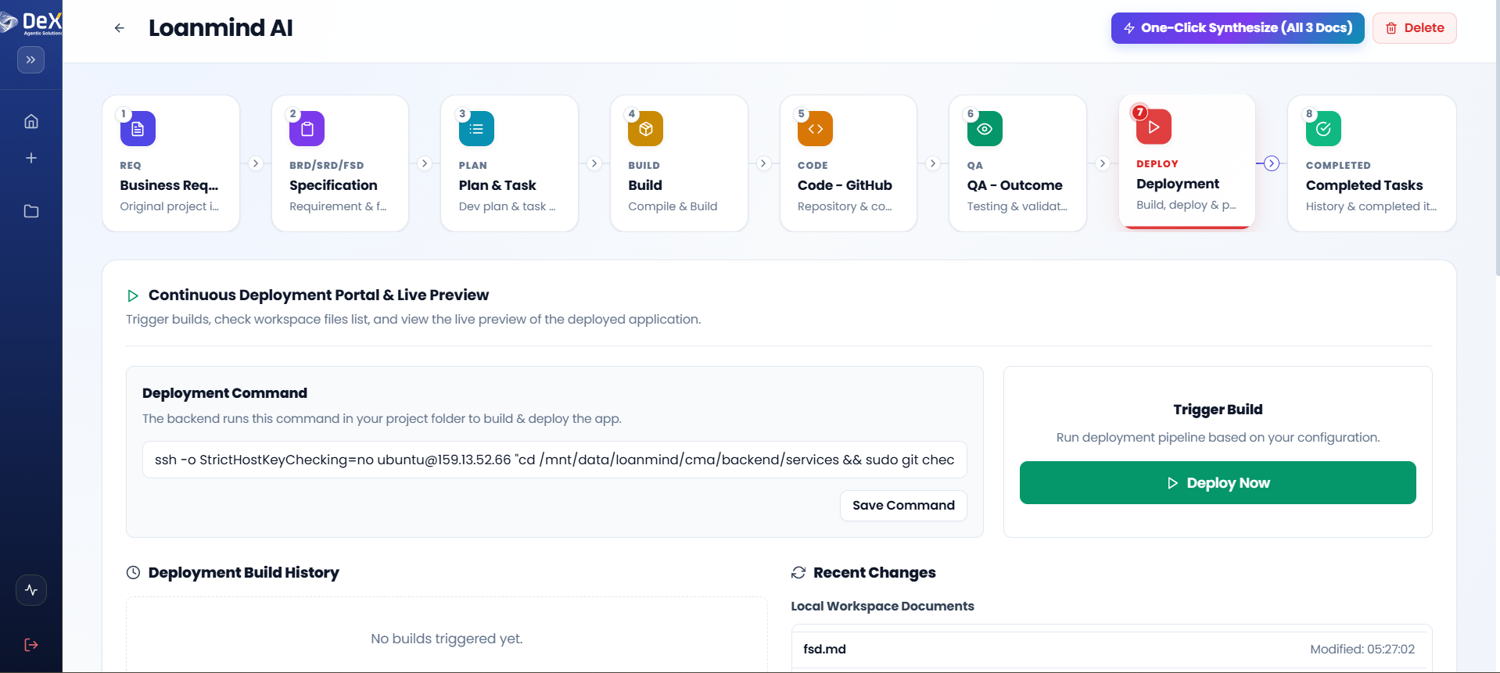
Steps
- After all QA checks pass, navigate to Stage 8 – Deployment.
- Click "Deploy Now" to trigger the deployment process.
- The system executes the deployment command and begins publishing the application.
- Scroll down to the Live App Preview section to monitor the deployment in real time.
- Validate the deployed application directly within the preview panel.
- Click "Open in New Tab" for a full-screen view — ideal for stakeholder review or extended testing.
Live App Preview Tab
| Action | Purpose |
|---|---|
| Inline Preview | Validate deployment within the DeX portal |
| Open in New Tab | Full-screen review for stakeholders or extended testing |
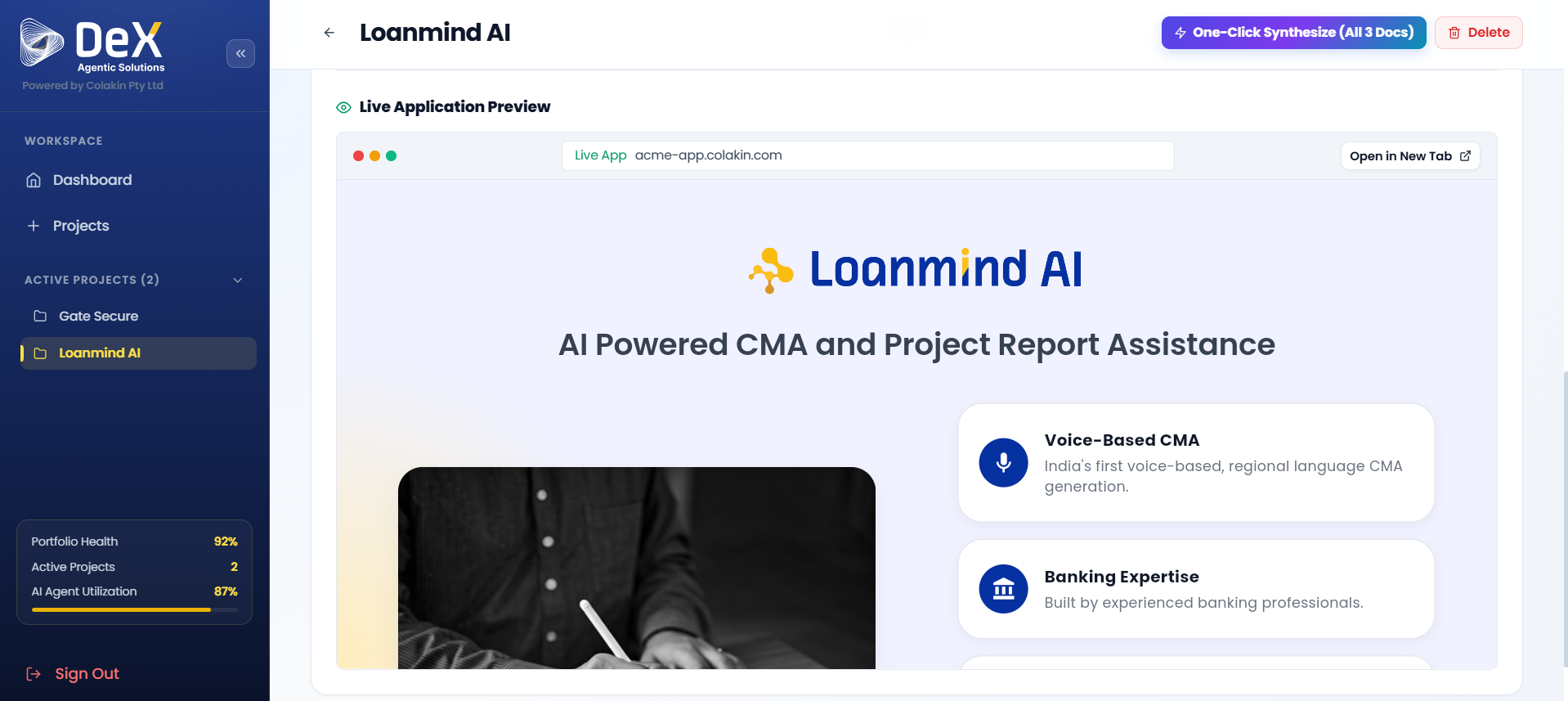
✅ A successful deployment confirms the application is live in the target environment. Share the live URL with stakeholders for acceptance testing.
Worked Example — Contractor Sync Go-Live
Once Contractor Sync passed QA, the team:
- Clicked Deploy Now, deploying the FastAPI backend and Flutter web preview build to the configured AWS environment.
- Used Live App Preview to walk through a full clock-in/clock-out cycle, confirming geofence and facial verification both worked against the live deployment.
- Clicked Open in New Tab to share the live preview link with the facilities company's operations lead for sign-off.
- Following stakeholder approval, the mobile build was distributed to the cleaner workforce.
What's Next
➡️ Stage 9 — Completed Tasks — Review the audit trail and build logs for the finished project.