Create Project — Overview & Prerequisites
⏱️ At a Glance Step 1 of 5. All you do here: pick a project name and a category. Takes under a minute — the real work starts in Step 2.
This is Step 1: Overview of the five-step project brief. It establishes the foundational identity of your project — its name and category — both of which are referenced across every document and sprint plan DeX generates from this point forward.
Prerequisites — What You Need Before You Start
DeX is designed to work even with an incomplete idea, but a project goes faster and produces a higher brief quality score if you arrive with the following ready:
| Prerequisite | Required? | Notes |
|---|---|---|
| Signed-in DeX account | Required | See Sign-In & Login. |
| Working project name (even a placeholder) | Required | Can be changed later; used across all generated docs. |
| Project category | Required | Guides AI architecture and tooling suggestions. |
| One-paragraph problem description | Strongly recommended | Speeds up Step 2 — Problem Definition significantly. |
| Target user roles | Recommended | Needed in Step 3 — Solution Design. |
| Tech stack preferences (or none) | Optional | DeX can recommend a stack in Step 4 if you have no constraints. |
| Build Access approval (for later phases) | Not needed yet | Only required once you reach Phase 4 — Build; request it when you get there. |
💡 If you don't have all of this ready, click Save Draft at any point in the brief and come back once you do. Nothing is lost.
Starting a New Project
You can start a new project from two places:
- Click "Create Project" from the Dashboard top bar, or
- Click "+ Projects" from the left menu panel
Both routes open the Create New Project workspace.
Step 1 — Project Overview
- Enter the Project Name. This name is
used across all generated documents (BRD, SRD, FSD), sprint
plans, and the Active Projects pipeline.
- Example:
Contractor Sync
- Example:
- Optionally click "Suggest Names" to get AI-generated naming options based on your selected category.
- Select a Project Category — e.g.,
Workforce Management,Developer Tools & SaaS,FinTech. This guides how the AI frames architecture recommendations and technology suggestions in later phases.- Example: For Contractor Sync, the category
selected was
Workforce Management & Field Operations.
- Example: For Contractor Sync, the category
selected was
- Click Continue to proceed to Step 2 — Problem Definition.
- Click Save Draft at any time to store your progress and return later.
🏷️ Choose your project category carefully — it influences how the AI frames architecture recommendations and technology suggestions in later phases. A
Workforce Managementcategorization, for instance, nudges DeX toward mobile-first, location-aware architecture patterns — relevant for something like Contractor Sync's geofencing requirement.
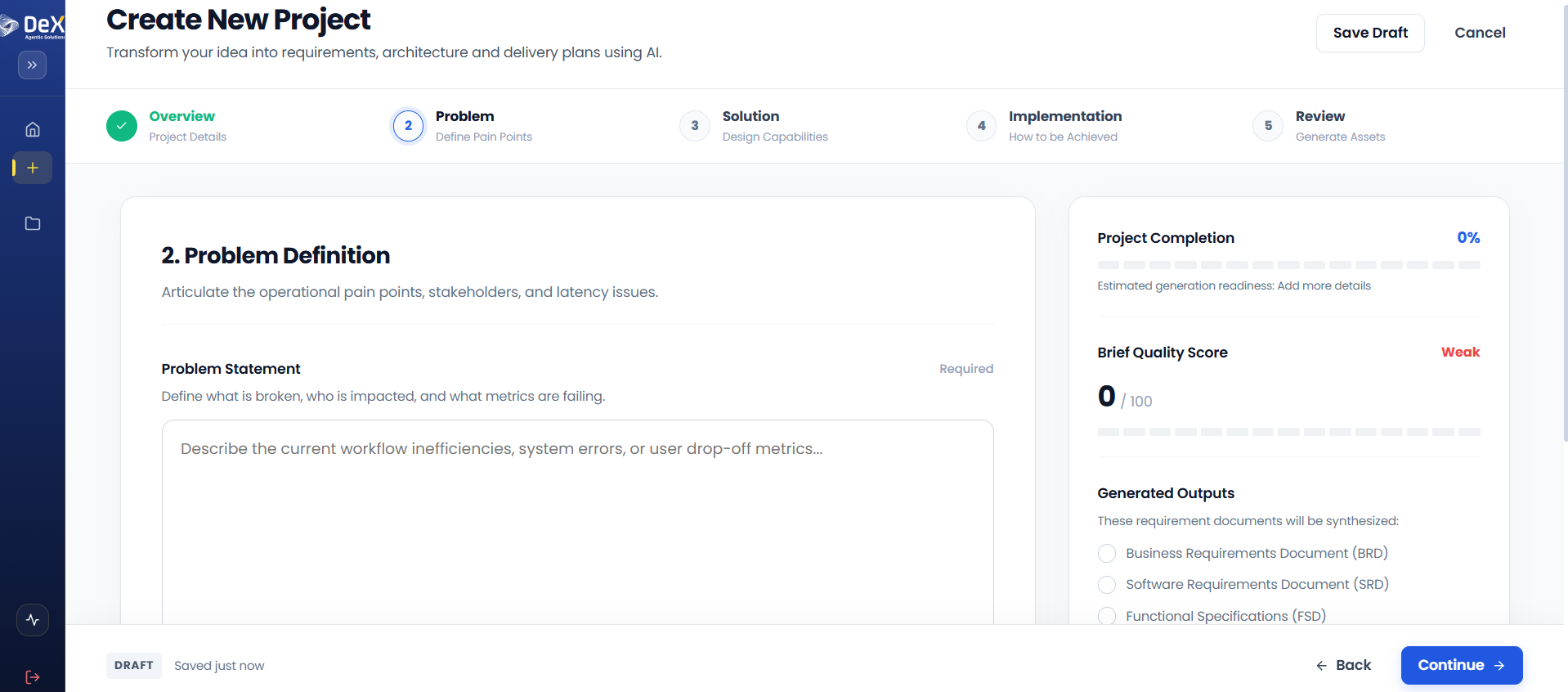
Worked Example — Contractor Sync
| Field | Value Entered |
|---|---|
| Project Name | Contractor Sync |
| Category | Workforce Management & Field Operations |
This is a deliberately simple Step 1 — the real depth comes in Steps 2 and 3. Continue to Problem Definition to see how the underlying pain point gets captured.
What's Next
➡️ Problem Definition — Define the business pain point your project addresses.