Step 7 — Deployment
Purpose: Release the validated application into the target environment using DeX's Continuous Deployment Portal with live preview capabilities.
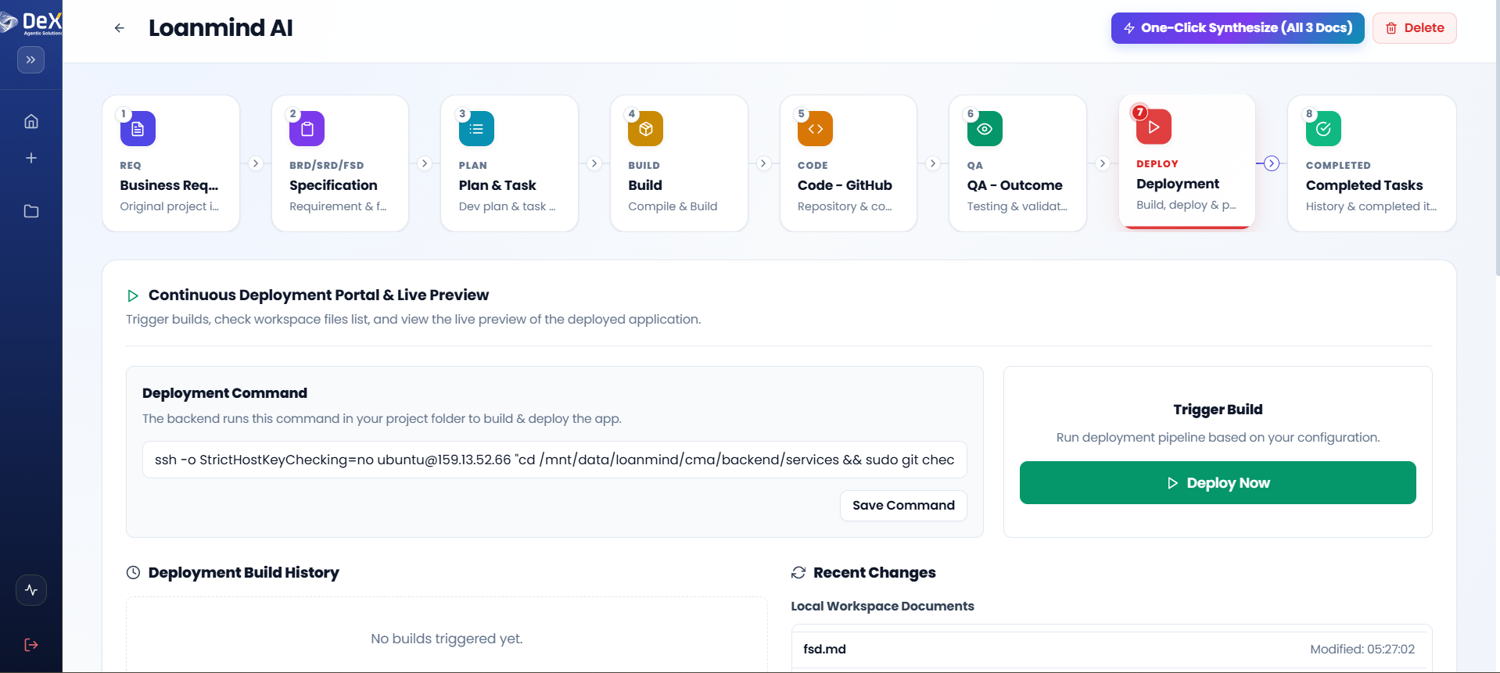
Steps
- After all QA checks pass, navigate to Phase 7 – Deployment.
- Click "Deploy Now" to trigger the deployment process.
- The system executes the deployment command and begins publishing the application.
- Scroll down to the Live App Preview section to monitor the deployment in real time.
- Validate the deployed application directly within the preview panel.
- Click "Open in New Tab" for a full-screen view — ideal for stakeholder review or extended testing.
Live App Preview Tab
| Action | Purpose |
|---|---|
| Inline Preview | Validate deployment within the DeX portal |
| Open in New Tab | Full-screen review for stakeholders or extended testing |
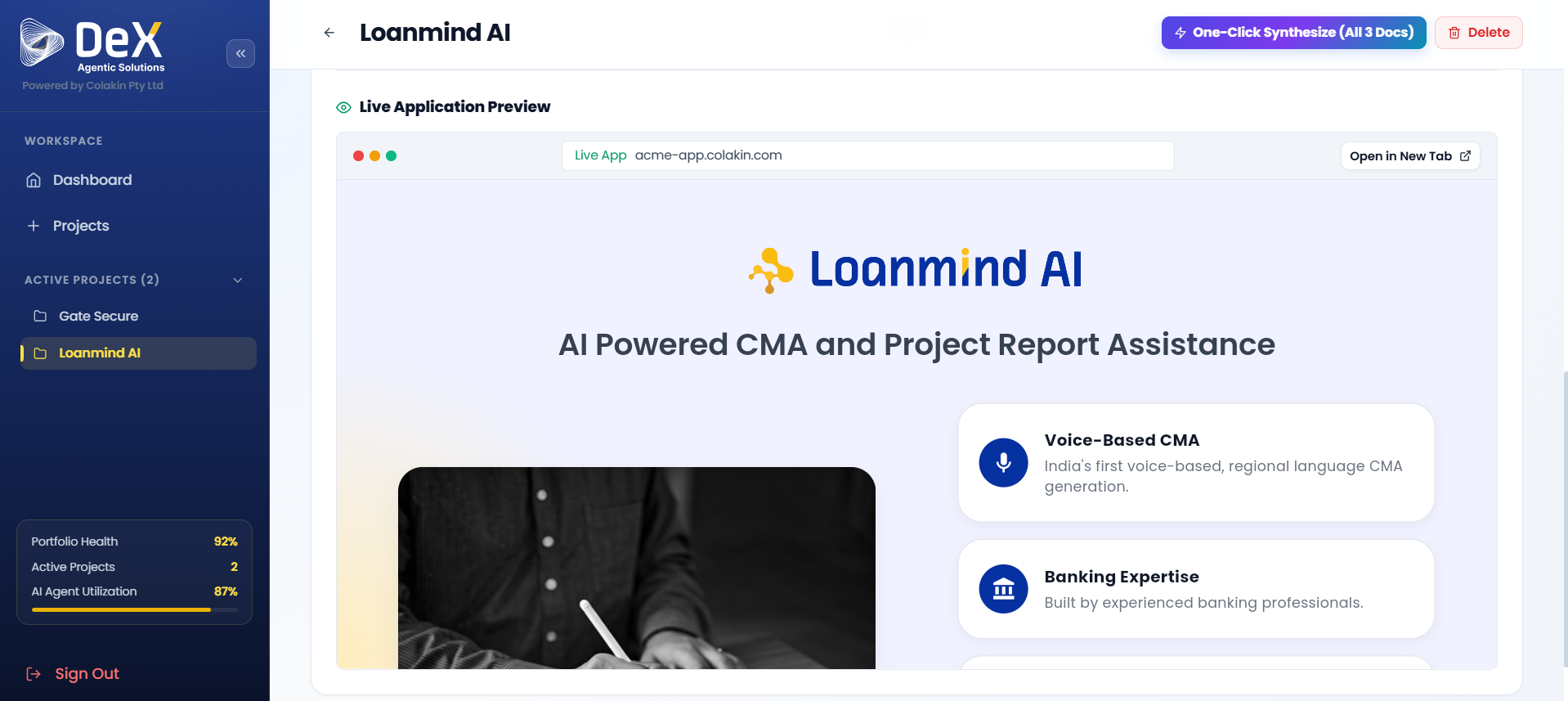
✅ A successful deployment confirms the application is live in the target environment. Share the live URL with stakeholders for acceptance testing.
Worked Example — Contractor Sync Go-Live
Once Contractor Sync passed QA, the team:
- Clicked Deploy Now, deploying the FastAPI backend and Flutter web preview build to the configured AWS environment.
- Used Live App Preview to walk through a full clock-in/clock-out cycle, confirming geofence and facial verification both worked against the live deployment.
- Clicked Open in New Tab to share the live preview link with the facilities company's operations lead for sign-off.
- Following stakeholder approval, the mobile build was distributed to the cleaner workforce.
What's Next
➡️ Active Projects — Completed Tasks — Review the audit trail and build logs for the finished project.