Step 4 — Review Project Brief
⏱️ At a Glance Step 4 of 5 — your last checkpoint. Skim everything once, fix anything that's off, then click Generate Documentation. This single click is what produces your BRD, SRD, and FSD.
The Review step is your final checkpoint before the AI engine begins generating your full documentation suite. Take time here to verify all inputs are accurate and complete — this is meaningfully cheaper than fixing a generated BRD after the fact.
Checklist Before Generating
- Project Name and Category are correct
- Problem Definition clearly identifies pain points, stakeholders, and metrics
- Solution Design covers overview, users, features, workflows, and success metrics
- Technical Architecture specifies frontend, backend, and infrastructure details
Steps
- Review Project Name & Category at the top of the summary.
- Read through the Problem Definition for completeness and accuracy.
- Verify all required fields are filled in across all sections.
- Click Back to revise any earlier step if needed.
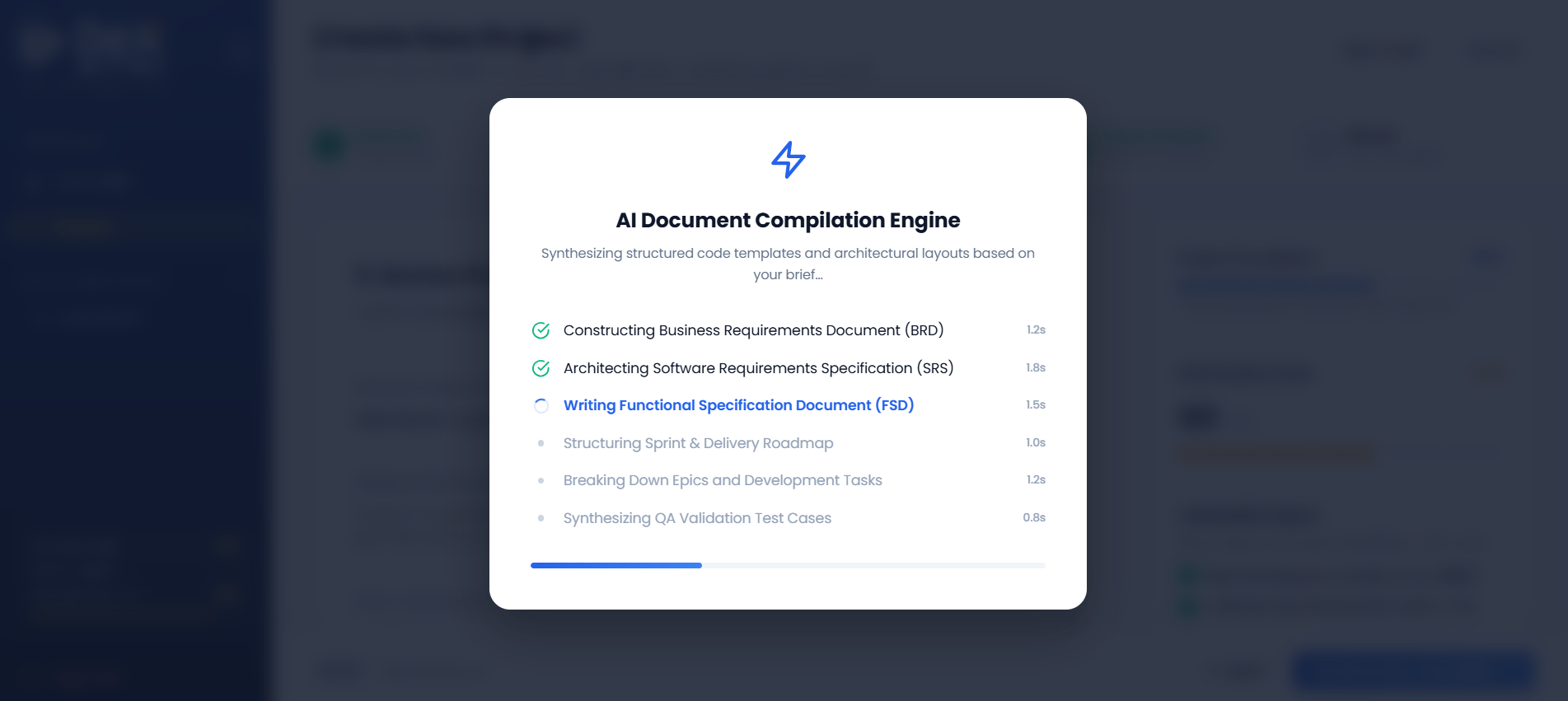
- Click Generate Documentation to launch the AI Document Compilation Engine.
- Click Save Draft to store progress without generating.
- Click Cancel to exit project creation.
Worked Example — Contractor Sync Review Summary
Here's what the review screen showed before Contractor Sync's documentation was generated:
| Section | Status | Summary |
|---|---|---|
| Overview | ✅ Complete | Contractor Sync — Workforce Management & Field Operations |
| Problem | ✅ Complete | Manual, dispute-prone attendance tracking with no location/identity verification |
| Solution | ✅ Complete | Geofenced + facial-verification mobile sign-in/sign-out app |
| Implementation | ✅ Complete | Flutter + FastAPI + PostgreSQL/PostGIS on AWS |
| Brief Quality Score | 92/100 | High — all required fields complete with quantified metrics |
What Happens After You Click "Generate Documentation"?
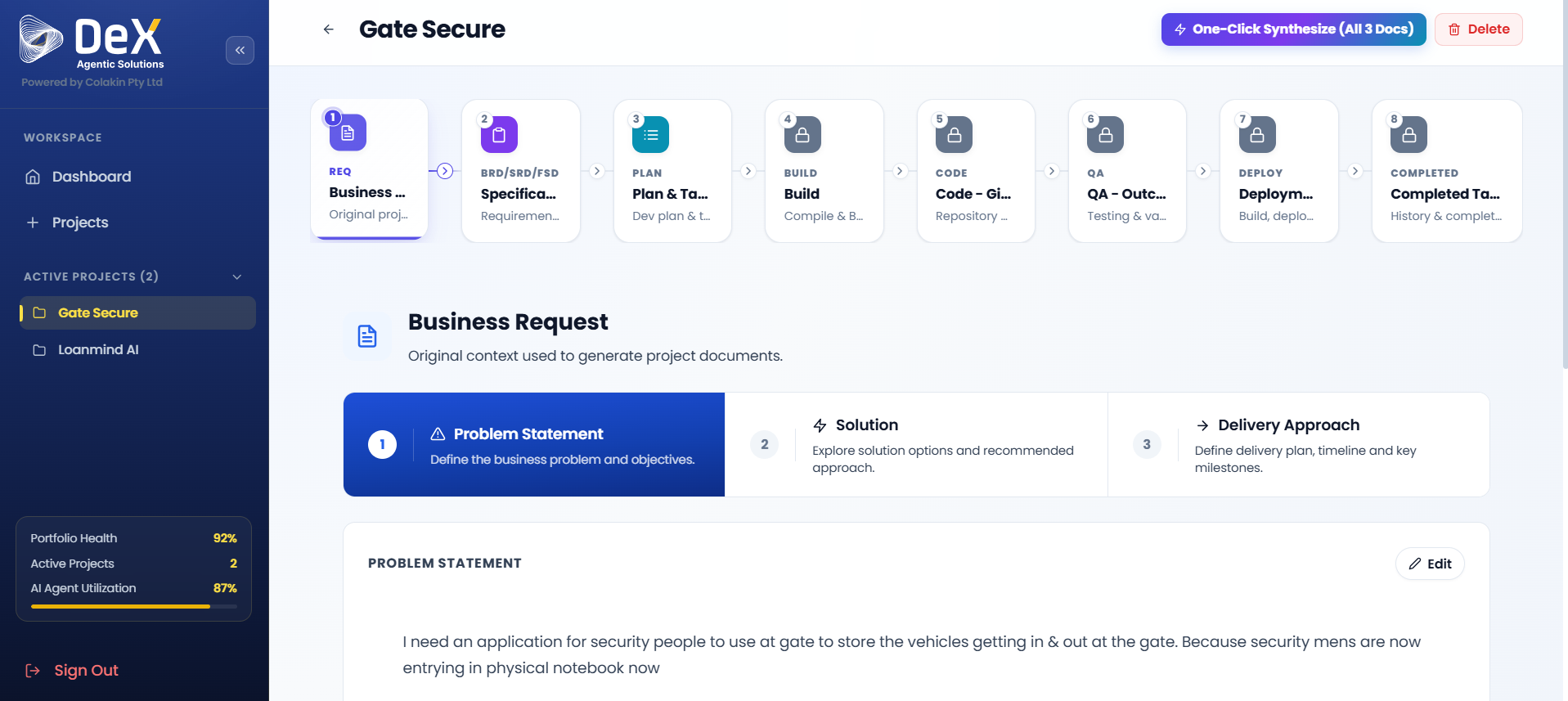
Once you click Generate Documentation, DeX launches the AI Document Compilation Engine and your project enters the Active Projects pipeline — a 9-stage delivery workflow that takes it all the way from this brief to a deployed application. The system processes all your inputs and begins synthesizing:
- ✅ Business Requirement Document (BRD)
- ✅ Software Requirement Document (SRD)
- ✅ Functional Specification Document (FSD)
You'll see a "Synthesizing Project" status while the AI works. Depending on project complexity, this typically takes a few moments.
Once complete, you're automatically moved into Stage 2 — Specification inside the Active Projects pipeline, where these three documents are available for review.
Where Your Project Goes From Here
This five-step brief and the Active Projects pipeline are two different things — the brief is how a project is created; Active Projects is where it lives afterward, all the way through to deployment:
| This Brief (Steps 1–5) | Active Projects (Stages 1–9) | |
|---|---|---|
| Purpose | One-time intake to describe the project | Ongoing pipeline the project moves through after creation |
| You are here | ✅ Step 5 — Review | — |
| Where you land next | — | Stage 2 — Specification (BRD/SRD/FSD review) |
📖 See the full 9-stage map: Active Projects — Overview.
What's Next
➡️ Active Projects — Overview — See the full 9-stage pipeline your project now enters, starting with the Business Request that was just generated from this brief.